Adobe
InDesign Postscript Settings |
Although InDesign is capable of
exporting PDF files in one step, for the most successful results,
it is recommended to create the Postscript file from InDesign before
using Acrobat Distiller to generate PDF files. These steps will also
allow for the final PDF to flattened which produces better results than
the typical InDesign Export PDF.
|
|
- Create a New Print Preset within InDesign
CS
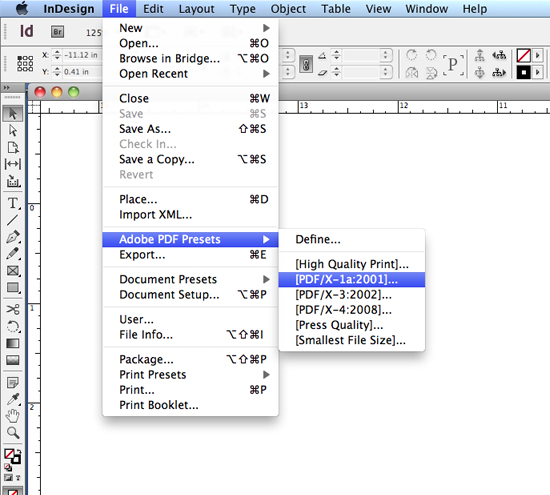
- From within InDesign, Select File > Print Presets > Define...
|
|
- Click on the New button in the Print Presets dialog.
|
|
- Name the Print Preset appropriately to identify it
as producing Postscript.
- Select Postscript fi le in the Printer pop-up
list.
- Select Adobe PDF in the PPD pop-up list.
- Select “General” from
the list of options on the left and make the following
settings:
- General setting -- Copies: 1
- Pages setting --
- Sequence: All Pages (unless generating single pages
for corrections/replacements)
- Spread: disabled
- Print Master Pages: disabled
- Options setting --
- Print Layers: Visible & Printable Layers
- Print Non-printing
Objects: disabled
- Print Blank Pages: enabled
|
|
- Select “Setup” from the list of options
on the left and make the following Settings:
- Setup setting --
- Paper Size: Custom (This permits InDesign
to base the width and height on
the defi ned document trim size plus bleed and marks).
- Orientation:
Portrait
- Offset: 0
- Gap: 0
- Options setting --
- Scale shoud be 100% in width and height
- Constrain Proportions enabled
- Option to Scale output to Fit another
trim size should only be used after testing
and confirmation by OGP
- Page Position: Centered
|
|
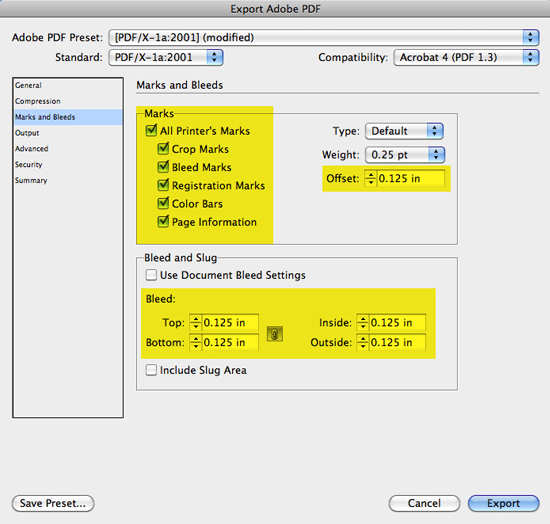
- Select Marks and Bleed from the list of option on the
left and make the following
settings: These options are only necessary if any page has ink that bleeds
off the page after trimming:
- Marks setting --
- All Printer’s Marks: Enable only
Crop Marks, Registration Marks and Page
Information
- Type: Default
- Weight: 0.25pt
- Offset: 0.125 in.
- Bleed and Slug setting --
- Use Document Bleed Settings:
disabled
- Bleed on all sides: 0.125 in
- Include Slug Area: disable
|
|
- Select Output from the list of options on the left
and make the following settings:
- Output setting --
- Color: Composite Leave Color Unchanged
(suitable for process color work
and for spot color work)
- Trapping: disabled
- Flip: None
- Screening: disabled
- Inks setting --
- Review list to verify no unintended color
are included (simply disabling output of undesired colors
- Frequency and Angle: disabled
|
|
- Select Graphics from the list of options on the left
and make the following
settings:
- Images settings -- Send Data: All
- Fonts settings -- Download:
Subset
- Postscript: Level 3
- Data Format: Binary
|
|
- Select Color Management from the list of options on
the left and make the
following settings:
- Color Management setting --
- Document: Selected (not that
it will disply any ICC color profi les that may
already have been selected for the document).
- Option setting --
- Color Handing: No Color Management
(select otherwise may alter color values
based on specifi c output profi les selected, and thus may not render
exactly
the color values already proofed).
|
|
- Select Advanced from the list of options on the left
and make the following
settings:
- OPI setting -- disable all settings
- Transparency Flattener settings --
- Preset: High Resolution
- Ignore Spread Overrides: disable
|
|
- Create a Postscript File using Predefined Print Preset:
- In
the Print dialog box within InDesign, select Print Preset Defined during
the
previous steps.
- Instead of a “Print” button, you will now
have a “Save” button.
Save the Postscript
file to the desired location using a naming convention that will uniquely
identify the title of the publication and the pages included in the file.
|